
Terminal REPL Guide
Interactive command-line interface for engineers.
Overview
The Terminal REPL (Read-Eval-Print Loop) is Zorora’s command-line interface designed for engineers who prefer working in the terminal. It provides an interactive environment for research queries, code generation, and development workflows.
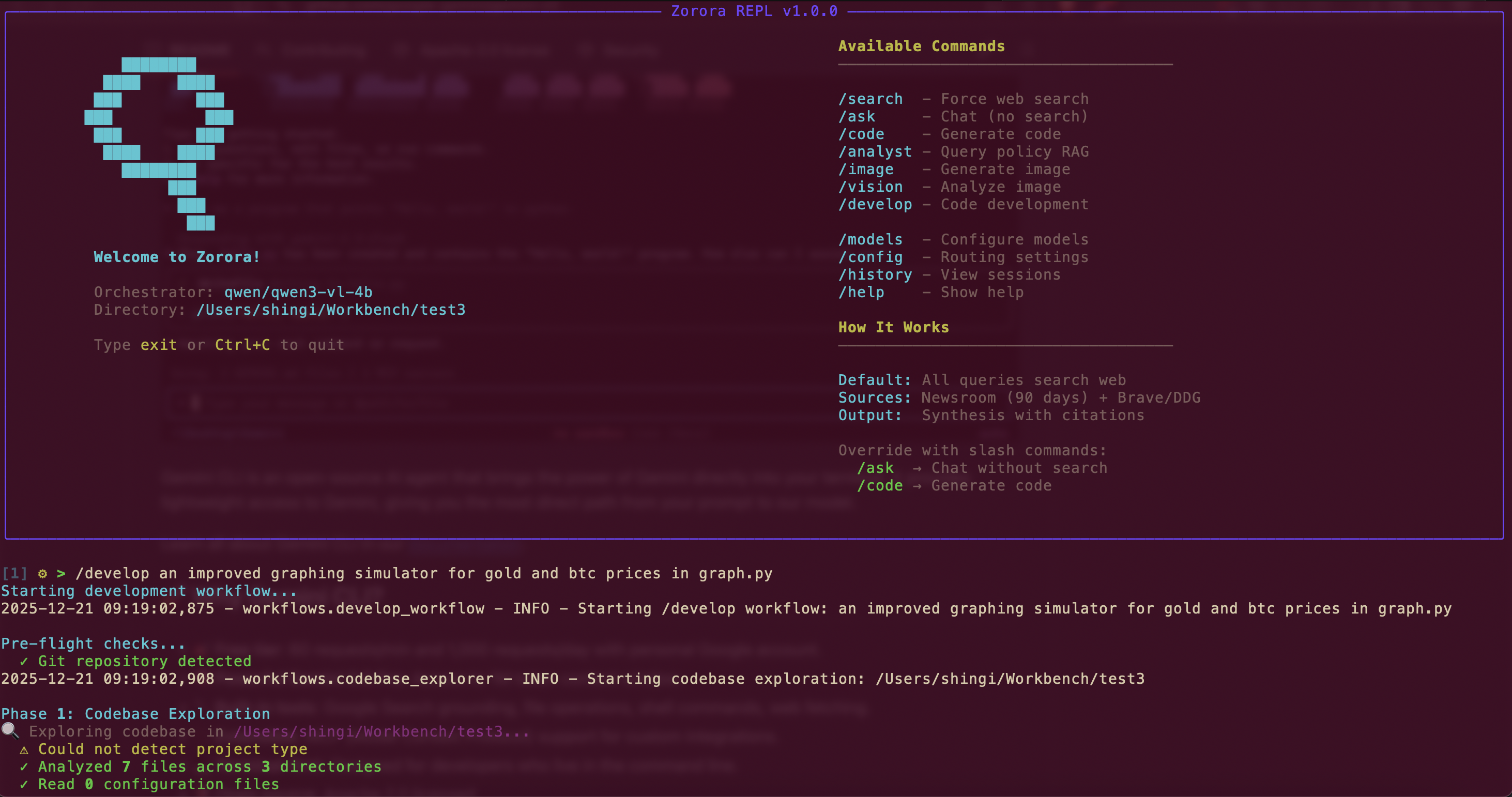
Zorora Terminal REPL - Interactive command-line interface
Starting the REPL
Basic Start
zorora
With Verbose Logging
zorora --verbose
# Or
zorora -v
Testing LM Studio Connection
On startup, Zorora automatically tests LM Studio connection:
Testing LM Studio connection...
✓ LM Studio is running

[1] ⚙ >
If LM Studio is not running, you’ll see a warning:
⚠ Warning: Could not connect to LM Studio: Connection refused
  Make sure LM Studio is running on http://localhost:1234
Basic Usage
Research Query
Simply type your question:
[1] ⚙ > What are the latest developments in large language model architectures?
The system automatically detects research intent and executes the deep research workflow.
Code Generation
Ask for code:
[2] ⚙ > Write a Python function to validate email addresses
Routes to Codestral specialist model for code generation.
Development Workflow
Use /develop for multi-step development:
[3] ⚙ > /develop Add user authentication to my Flask app
Executes: explore → plan → approve → execute → lint
Slash Commands
Force specific workflows with slash commands:
/search <query>- Force deep research workflow/ask <query>- Force conversational mode/code <prompt>- Force code generation/develop <request>- Multi-step development workflow/image <prompt>- Generate image with FLUX/vision <path> [task]- Analyze image with vision model
See Slash Commands Reference for complete documentation.
System Commands
/models- Interactive model selector/config- Show current routing configuration/history- Browse saved conversation sessions/help- Show available commandsexit,quit,q- Exit the REPL
Features
Auto-Save Conversations
Conversations are automatically saved to ~/.zorora/conversations/ with metadata.
Research Persistence
Research findings are automatically saved to:
- SQLite database:
~/.zorora/zorora.db - JSON files:
~/.zorora/research/findings/<id>.json
Rich Terminal UI
The REPL uses Rich library for:
- Syntax highlighting
- Progress indicators
- Formatted output
- Color-coded messages
Tips & Best Practices
Use Natural Language
Zorora automatically routes queries:
- Research questions → Deep research workflow
- Code requests → Code generation
- Development requests → Development workflow
Use Slash Commands for Control
When you need to force a specific workflow:
/search- Ensure web search is used/code- Force code generation/ask- Skip search, use model knowledge only
Save Important Outputs
> /code write a CSV parser
[Code generated...]
> /save csv_parser.py
Saved to: csv_parser.py
Review History
> /history
[Shows list of saved sessions]
> /resume <session_id>
[Loads previous session]
Troubleshooting
REPL Not Starting
Problem: zorora command not found
Solution:
- Check installation:
pip list | grep zorora - Use
python -m zororainstead - Reinstall:
pip install --force-reinstall git+https://github.com/AsobaCloud/zorora.git
LM Studio Connection Failed
Problem: Cannot connect to LM Studio
Solution:
- Start LM Studio
- Load a model on port 1234
- Verify:
curl http://localhost:1234/v1/models
Command Not Working
Problem: Slash command not recognized
Solution:
- Check spelling (case-sensitive)
- Use
/helpto see available commands - Check for typos
See Also
- Slash Commands Reference - Complete command reference
- Research Workflow - Deep research capabilities
- Code Generation - Code generation guide
- Development Workflow - Multi-step development
- Configuration - Configure models and endpoints